 ConvertiPDF
Shrink a PDF that is too heavy to send.
No sign-up · 100% in your browser
Merge PDF: combine several files into one document
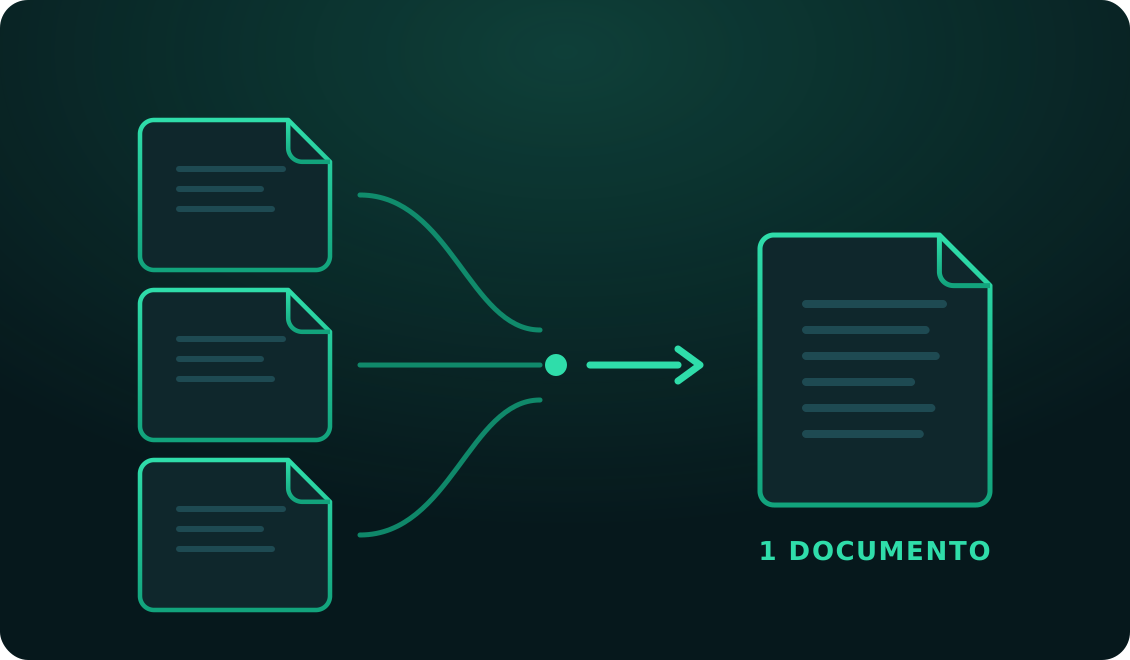
Pick two or more PDFs, put them in the order you want and download them as a single document. No sign-up, no watermarks and your files never leave your device.
- Your files are never uploaded
- No upload waiting
- Unlimited conversions
0Files uploaded
20 MBPer file
30Pages per PDF
Getting ready…
Done
Nothing is sent to the internet: the file is read and generated on your device.
Up to 20 MB per file and 60 MB in total.
Advertisement
How it works
1
Upload your PDFs
Select two or more documents at once, up to 20 MB each.
2
Put them in order
Use the arrows to arrange them exactly how you want.
3
Download the document
A single PDF is generated with every page in sequence.
Combine several PDFs into one, without signing up or handing over your files
Working with documents split into pieces is awkward for everyone. The application that asks for "a single file" when you have the form in one place, your ID in another and the receipt in a third. The group assignment where everyone submitted their part separately. Report chapters that came out of different exports. A year's worth of invoices you'd rather archive together than keep as twelve loose files.
Merging PDFs solves all of that in one step: upload the documents, put them in the right order and download a single file with every page in sequence. No account, nothing to install, no usage limit.
Order matters, and here you control it
Many online tools merge files alphabetically by filename, which almost never matches the order you actually need. Here, as soon as you upload the documents you get the full list with arrows on each one to move it up or down. Arrange them however you like and press merge: the resulting PDF follows exactly that order.
It's a small detail that saves a lot of time, especially when the files come from different places and have names that follow no common logic.
Merging doesn't degrade your documents
It's worth understanding the difference between merging and compressing, because they get confused often. When merging, pages are copied exactly as they are from each original document into the new file: they aren't redrawn, images aren't re-encoded and nothing is touched. Text stays selectable and searchable, images keep their original resolution, and each document's internal links are preserved.
That means the merged PDF weighs roughly what the originals add up to. If the result is too large to send, the next step is Compress PDF.
Why in-browser instead of on a server
Most services for merging PDFs upload your files to their servers, process them there and hand back the result. It works, but it means your documents sat, even for a few minutes, on a computer you don't control. For a public brochure that's fine; for a payslip, a lease, a medical record or a copy of your ID, it isn't.
If at some point you need the opposite — pulling out a few pages or breaking a long PDF into individual files — there's Split PDF, and Delete pages for stripping out what you don't want.
Advertisement
Other tools
Break a PDF into single pages or extract only what you need.
Strip out the pages you don't need and download a clean document.
Convert JPG and PNG photos to PDF, or a PDF to images.
Frequently asked questions
How many PDFs can I merge at once?
As many as you need, as long as each file is under 20 MB and they add up to no more than 60 MB. That covers most everyday cases comfortably.
Can I choose the order of the documents?
Yes, and it matters. After uploading you get the full list with up and down arrows on each file, so you can arrange them exactly as you want. The final PDF follows that order page by page.
Does merging lose any quality?
No. Unlike compressing, merging doesn't reprocess anything: pages are copied exactly as they are from the original documents. Text stays selectable and images keep their exact resolution.
Are my files uploaded to a server?
No. The merge happens inside your own browser. Your documents are never sent over the internet, so you can combine contracts, payslips or personal paperwork without handing the files to anyone.
Can I merge password-protected PDFs?
No. If a PDF is encrypted and asks for a password to open, the tool can't read its pages and will show an error. Remove the protection first from the program you normally open it with.
Does the final document have a watermark?
No. The resulting PDF comes out clean — no marks, no logos and no added advertising pages.