 ConvertiPDF
Shrink a PDF that is too heavy to send.
No sign-up · 100% in your browser
Delete pages from a PDF, free and without uploading the file
Tick the pages that don't belong — the blank cover, the duplicated sheet, the appendix nobody asked for — and download the PDF already cleaned up. No sign-up and the document never leaves your device.
- Your files are never uploaded
- No upload waiting
- Unlimited conversions
0Files uploaded
20 MBPer file
30Pages per PDF
Getting ready…
Done
Nothing is sent to the internet: the file is read and generated on your device.
PDF up to 20 MB.
Advertisement
How it works
1
Upload your PDF
Drag the document or click to select it. 20 MB maximum.
2
Mark what doesn't belong
You'll see a thumbnail of every page: tap the ones you want gone.
3
Download the result
A new PDF with the remaining pages, in their original order.
Strip out what doesn't belong in a PDF, without installing anything
Hardly any PDF arrives perfect. The scanner slipped a blank sheet between two documents. The same page came out twice. The report carries a twenty-page appendix the recipient doesn't care about. The corporate cover gets in the way when printing. And the original file, more often than not, is either gone or can't be regenerated.
Deleting pages is the most common operation on a finished PDF, and also one of the most awkward: desktop programs that do it are usually paid, and the free websites ask you to upload the document to their server. Here you need neither.
Mark on screen, don't guess page numbers
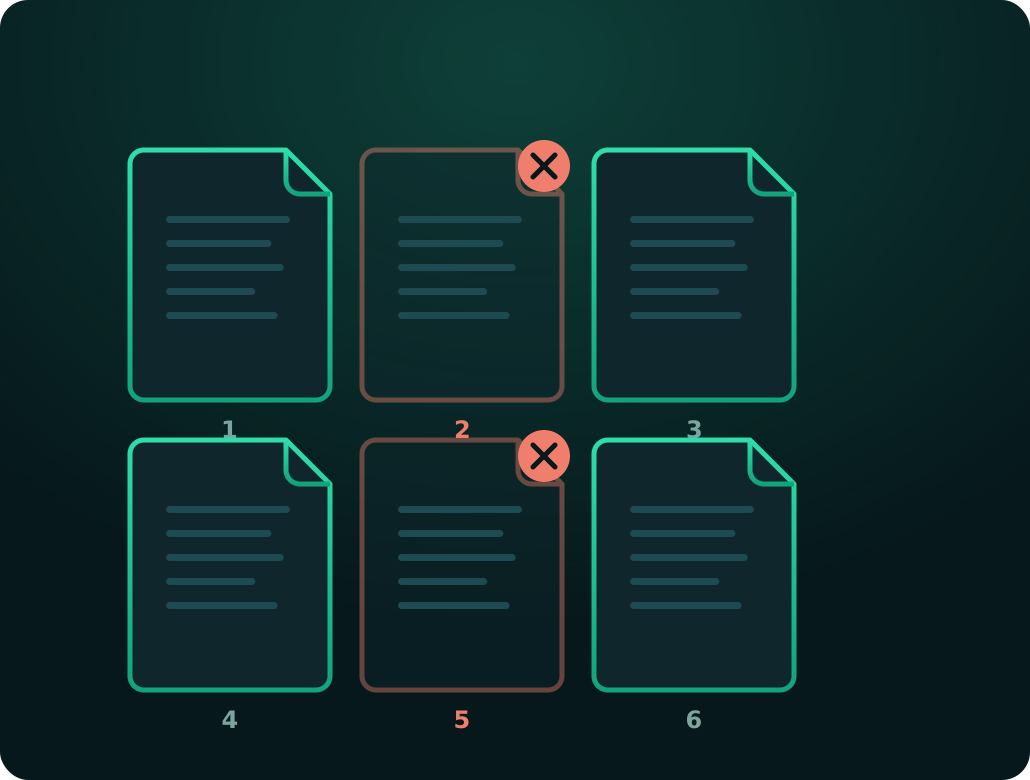
The practical difference is in how you choose what to remove. Typing "pages 3, 7 and 12" forces you to keep the PDF open in another window, count carefully and trust you didn't slip. Here a thumbnail of every page is drawn as soon as you upload the file: you see what's there, tap what doesn't belong, and it turns red. Change your mind and tap it again.
Under the grid you're constantly reminded how many pages will be deleted and how many will remain, so there are no surprises when you download. And if you mark them all, the button disables itself with an explanation rather than letting you generate a broken file.
Thumbnails are drawn progressively: the numbered boxes appear first, so you can start marking immediately, and each page fills in as it's processed. On a long document that means you're not left staring at a blank screen.
Removing pages doesn't degrade the document
It's worth being clear about what happens and what doesn't. When you delete pages, the ones you keep are copied exactly as they are from the original into the new file: not redrawn, images not re-encoded, text untouched. The result is indistinguishable from the original except for the missing pages, and it preserves the exact order of what remains.
As a side effect the file usually weighs less, in proportion to what you removed. But if your real aim is to reduce size while keeping all the content, the tool you want is Compress PDF, not this one.
The document never leaves your device
Think about the kind of pages people want to delete: the section with bank details that shouldn't be shown, the sheet of a file that doesn't belong to this application, the part of a contract that doesn't concern the other party. Those are exactly the documents it makes least sense to upload to somebody else's server.
If instead of removing pages you want to keep a specific block or break the whole document apart, use Split PDF: it does the inverse job and also lets you extract a range.
Advertisement
Other tools
Combine several PDFs into one file, in the order you choose.
Break a PDF into single pages or extract only what you need.
Convert JPG and PNG photos to PDF, or a PDF to images.
Frequently asked questions
How do I choose which pages to remove?
As soon as you upload the PDF, a thumbnail of every page appears. Tap the ones you don't need and they turn red with a cross; tap again to undo. Below, you're told at all times how many will be deleted and how many will remain.
Can I delete every page?
No, and the button disables itself if you mark them all: a PDF with no pages isn't a valid document. Leave at least one unmarked.
Does removing pages lose quality?
No. The pages you keep are copied exactly as they are from the original, without reprocessing. Text stays selectable and images keep their exact resolution.
Is my PDF uploaded to a server?
No. Everything happens inside your own browser, on your device. The document is never sent over the internet, so you can clean up contracts, records or personal paperwork without handing them to anyone.
Is the order of the remaining pages kept?
Yes. Removing pages doesn't reorder anything: the ones that stay keep exactly the sequence they had in the original.
What if the thumbnails don't appear?
On very large documents or phones with little memory the thumbnails may take a while or fail to draw. The tool still works: every box carries its page number, so you can mark them by number.